Configurations
In NXLog Platform, a configuration refers to a predefined NXLog Agent configuration. See Create a configuration for instructions on how to create one.
You can create configurations for different requirements and apply them to multiple NXLog Agent instances in one go. Configurations dramatically improve the efficiency and scalability of managing your agents.
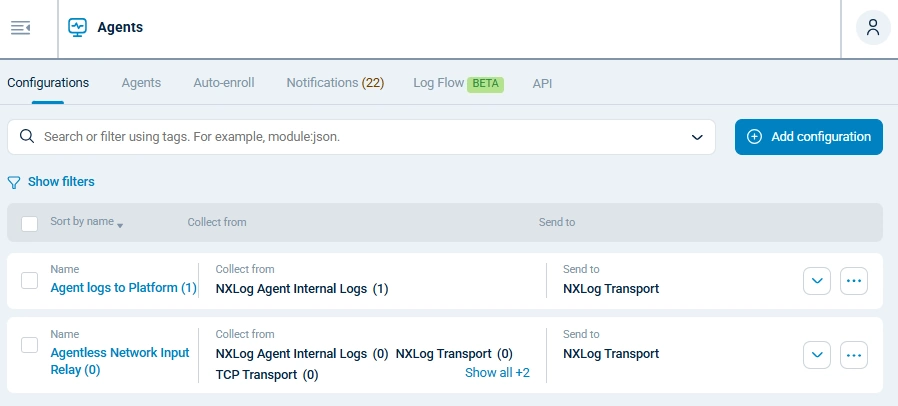
To see your configurations, navigate to the Agents > Configurations page. You can click Show filters, then select one or more statuses to narrow the configuration list.
| Column | Description |
|---|---|
Name |
The configuration’s name. The SP icon indicates configurations that were created from a template. The number in parenthesis indicates how many agents are currently using the configuration. |
Collect from |
Input modules included in the configuration. The number in parenthesis indicates how many instances of that specific input module are currently in use by agents assigned to this configuration.
For example, if a configuration uses two instances of the File input module and it is assigned to four agents, the Collect from column will show |
Send to |
Output modules included in the configuration. |
Version |
The latest configuration version. |
Actions menu |
Click for further actions:
|
Configuration version history
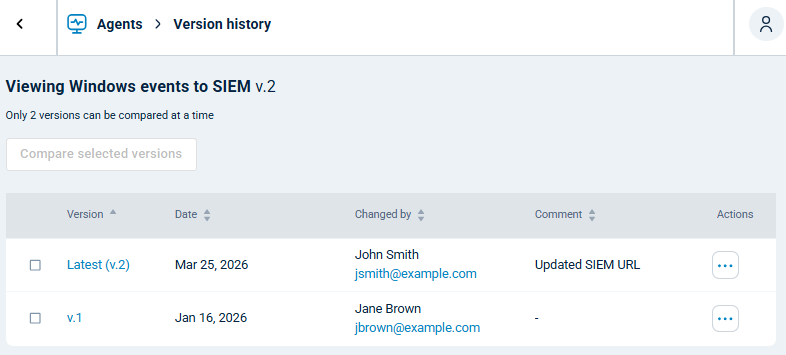
NXLog Platform automatically keeps a record of configuration changes, incrementing the configuration version number by 1 each time you save changes. To view a configuration’s history, go to the Configurations view, click the … button next to the configuration, and select Version history.
| Column | Description |
|---|---|
Version |
Configuration version number. Click on it to view the configuration at that version. |
Date |
Date when the configuration was updated. |
Changed by |
Name and email address of the user who made the change. |
Comment |
Optional comment entered by the user when saving the configuration. |
Actions |
Click for further actions:
|
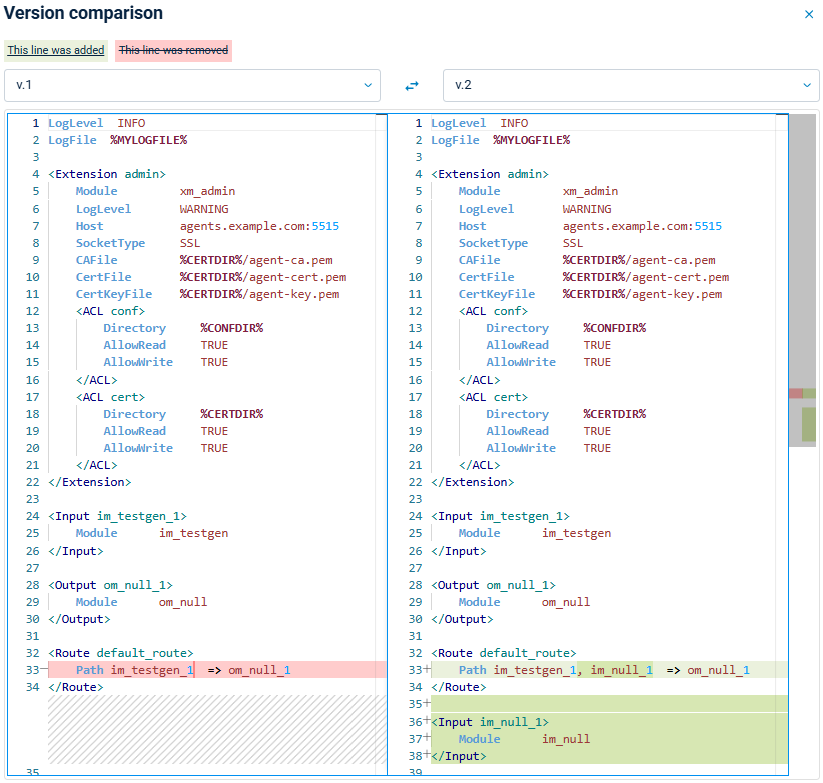
Select two configuration versions, then click Compare selected versions to view a detailed comparison of the changes.