
Collecting logs from Windows Event Log
Windows Event Log captures system, security, and application logs on Windows operating systems. It serves as a repository of detailed events generated by the system and is the first resource IT administrators refer to when troubleshooting issues. Besides troubleshooting, Windows events are also important for security monitoring and satisfying compliance regulations.
NXLog Agent can aggregate Windows Event Log entries and send them to centralized destination like SIEMs and observability backends. NXLog Agent supports collecting logs natively via the Windows Event Log API and ETW, from log files, or remotely over the network.
About Windows Event Log
Windows Event Log does not store logs in plain-text files but in a proprietary binary format. Therefore, you cannot view these logs in a text editor or send them over the network as syslog messages in their original format. However, raw event data can be converted to XML using the Windows Event Log API.
The EVTX file format
Windows stores events in EVTX files since Windows Vista and Windows Server 2008, and in EVT files before that.
Both file formats are proprietary and can be viewed in Event Viewer eventvwr.msc.
The new Windows event format has many enhancements over its predecessor, including new event properties, channels, and support for XML. From a log collection perspective, the added support for XML is the most important feature, as it allows the processing and sharing of events in a structured format.
Windows stores EVTX files for built-in channels in the C:\Windows\System32\winevt\Logs\ directory.
You can export events from Event Viewer in four formats: EVTX, XML, TXT, and CSV.
NXLog Agent can read EVTX and EVT files using the Event Log for Windows input module, which also allows capturing the raw XML-formatted event data.
Viewing Windows events
You can examine Windows events in the Event Viewer application, which is included with Windows. Event Viewer uses localized templates to render complete, human-readable event information, since Windows events store only property values. It displays event data in two views:
-
The default is the General view, which displays the event in a user-friendly way.
-
The Details view shows a list of standard and event-specific properties. You can choose to view the properties in Friendly View, which shows the data in a hierarchical list, or XML.
Consumers, such as NXLog Agent, can read events using the Windows Event Log API. Refer to Windows Event Log Functions in the Microsoft documentation for more information.
Event log channels
A channel is a stream of events collected from a publisher and written to a log file. Channels are organized into two groups:
-
Windows Logs contains general channels for
Application,Security,Setup,System, andForwarded Events. -
Applications and Services Logs contains channels created for specific applications and components.
Channels are divided into two types:
-
Serviced channels are low-volume and offer reliable data delivery. Event collectors can subscribe to these channels, and you can forward events from them to another system.
-
Direct channels are for high-performance log collection and are turned off by default. It is not possible to subscribe to a direct channel.
To see these channels in Event Viewer, click the View menu and select Show Analytic and Debug Logs. To turn on logging for a direct channel, right-click it, select Properties, and check the Enable logging option on the General tab.
These channel types are divided further by the intended audience:
-
Administrative channels are serviced channels that collect events intended for end users, administrators, and support.
-
Operational channels are serviced channels that collect events intended for troubleshooting.
-
Analytic channels are direct channels that contain events related to program operations. These channels often collect a high volume of events.
-
Debug channels are direct channels intended for developers to debug their applications.
| Channel groups | Channels | Channel type |
|---|---|---|
Windows Logs |
Application |
Administrative (serviced) |
Security |
Administrative (serviced) |
|
Setup |
Operational (serviced) |
|
System |
Administrative (serviced) |
|
Forwarded Events |
Operational (serviced) |
|
Applications and Services Logs |
DHCP-Server/Admin |
Administrative (serviced) |
DHCP-Server/AuditLogs |
Analytic (direct) |
|
DHCP-Server/DebugLogs |
Debug (direct) |
|
(And many more publisher-defined channels) |
||
The Event Log for Windows input module can collect logs from a specific channel with the Channel directive.
For more information about event channels, see Event Logs and Event Logs and Channels in Windows Event Log in the Microsoft documentation.
Event log providers
Event providers are services, drivers, or applications that run on the computer and have the necessary instrumentation to write to an event log. There are four main types of providers:
-
Manage Object Format (MOF) providers (also referred to as "classic")
-
Windows Software Trace Preprocessor (WPP) providers
-
Manifest-based providers
-
TraceLogging providers
For more information, see Providers in the Microsoft documentation.
Collect Windows events
NXLog Agent provides several input modules for collecting Windows events:
-
The Event Log for Windows module is available on Windows and collects events from Windows 2008/Vista and later. It supports collecting events locally or remotely via MSRPC. To collect events from Windows XP and older systems, use the Event Log for Windows XP/2000/2003 module instead.
-
The Windows Event Collector module is available on Linux, macOS, and Windows. It can receive events from remote Windows systems via Windows Event Forwarding. We recommend this module for collecting logs remotely because it’s easy to configure WEF clients using GPO.
Collect Windows events locally
The Event Log for Windows input module can collect logs locally from Windows 2008/Vista and newer versions.
| Because the Windows Event Log subsystem does not support subscribing to the Debug and Analytic channels, the Event Log for Windows module cannot collect events from these channels. |
This configuration collects all Windows events from the local system. For demonstration purposes, it converts the events to JSON format using the JSON extension and writes them to a file.
<Extension json>
    Module    xm_json
</Extension>

<Input windows_events>
    Module    im_msvistalog
</Input>

<Output file>
    Module    om_file
    File      'C:\logs\windows_events.log'
    Exec      to_json(); (1)
</Output>| 1 | The to_json() procedure converts the event to JSON format and writes it to the $raw_event core field. The File output module uses this field when writing records to a file. |
Collect Windows events remotely via MSRPC
NXLog Agent can collect events from remote Windows systems with the Event Log for Windows input module. This way, you do not need to install NXLog Agent on each Windows system, but use a central agent to collect the events remotely via MSRPC.
| Because the Windows Event Log subsystem does not support subscribing to the Debug and Analytic channels, the Event Log for Windows module cannot collect events from these channels. |
This configuration uses the Event Log for Windows input module to collect Windows events from a remote server named MYSERVER.
To adapt this example to your environment, change the following directives according to your target machine:
<Input windows_events>
    Module            im_msvistalog
    </QueryXML>
    RemoteServer      MYSERVER
    RemoteDomain      example.com
    RemoteUser        Administrator
    RemotePassword    secret
</Input>

<Output file>
    Module            om_file
    File              'C:\logs\windows_events.log'
</Output>
Collect events remotely with Windows Event Forwarding
NXLog Agent provides the Windows Event Collector module for collecting Windows events from remote machines via Windows Event Forwarding (WEF). This input module is available for all supported operating systems and supports Kerberos and certificate-based authentication.
This configuration listens for connections on all available network interfaces on port 5985. It uses certificate-based authentication. See Configuring WEF to use HTTPS in the NXLog Agent Reference Manual.
<Input windows_events>
    Module              im_wseventing
    ListenAddr          0.0.0.0
    Port                5985
    Address             https://linux.example.com:5985/wsman
    HTTPSCertFile       %CERTDIR%/agent-cert.pem
    HTTPSCertKeyFile    %CERTDIR%/agent-key.pem
    HTTPSCAFile         %CERTDIR%/ca.pem
    <QueryXML>
        <QueryList>
            <Query Id="0">
                <Select Path="Application">*</Select>
                <Select Path="Windows PowerShell">*</Select>
            </Query>
        </QueryList>
    </QueryXML>
</Input>

<Output file>
    Module              om_file
    File                'C:\logs\windows_events.log'
</Output>
Adding the <Computer> tag to the QueryXML directive allows you to specify which computers to collect events from.
This tag accepts a pattern that NXLog Agent will match against the name of the connecting Windows client.
If the computer name does not match the specified pattern, NXLog Agent will not collect its events.
The following QueryXML directive, if added to the above configuration, would provide an alternative query for computer names starting with foo*.
Other computers will use the QueryXML without the <Computer> tag.
<QueryXML>
    <Computer>foo*</Computer>
    <QueryList>
        <Query Id="0">
            <Select Path="Application">*</Select>
        </Query>
    </QueryList>
</QueryXML>
Collect events from Windows XP and older systems
The Event Log for Windows XP/2000/2003 input module collects events from Windows XP, Windows 2000, and Windows 2003.
The module retrieves the available log sources from the SYSTEM\CurrentControlSet\Services\Eventlog registry key and polls logs from all the sources.
You can specify the log sources you want to collect with the Sources directive.
This example shows a basic configuration of the Event Log for Windows XP/2000/2003 module. It collects Windows events from all registered log sources and forwards them to a remote server via TCP.
<Input windows_events>
    Module    im_mseventlog
</Input>

<Output tcp>
    Module    om_tcp
    Host      192.168.1.123:1514
</Output>
Filter Windows logs
Applications and services on Windows can generate a large volume of logs, and it is often necessary to collect a subset of the events. There are several ways to filter Windows logs using the Event Log for Windows input module:
-
Specifying an XPath query with the Query or QueryXML directives. An XPath query allows you to subscribe to multiple channels and filter logs by various attributes. This method provides a performance advantage because NXLog Agent will not collect unnecessary events in the first place. However, XPath queries have a maximum length, limiting the ability to create detailed event subscriptions, so you may need to combine XPath filtering with post-collection processing. See Windows event IDs to monitor for examples.
-
Using the Channel directive to collect all events from a specific channel.
-
Using the File directive to process a log file. In this case, the module reads all events from the
.evtxfile. This method is most suitable for forensics, where you process historical data offline. -
Selectively discarding events after you collect them using the drop() procedure within an Exec block.
Filter logs with XPath queries
Windows Event Log supports a subset of XPath 1.0. For more information, see Consuming Events in the Microsoft documentation.
Event Viewer provides the most practical way to write and test queries. For example, you can test an XPath query by filtering the current log or creating a custom view:
-
Open Event Viewer (
eventvwr.msc), click on a log, then right-click on it and choose Filter Current Log… from the context menu. A dialog box showing basic filtering options will be displayed.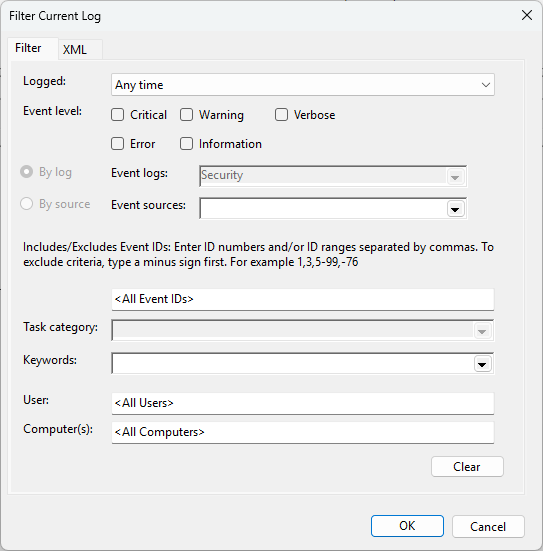
-
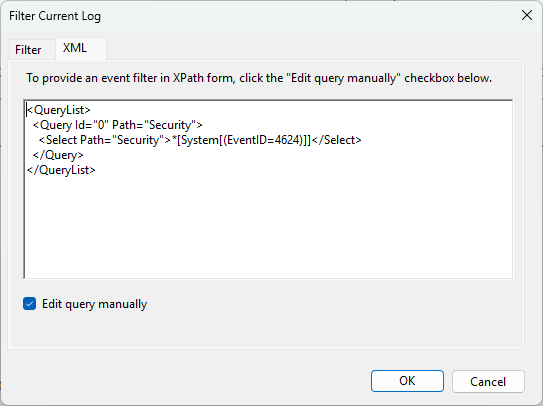
Specify the desired criteria, then switch to the XML tab to see the corresponding XPath query. You can use this query as the value for the QueryXML directive.
-
You can switch on advanced filtering by selecting the Edit query manually checkbox on the XML tab. We recommend verifying that the query matches the correct events before copying it to the NXLog Agent configuration.
By default, NXLog Agent reports an error if a query contains a source that is not available on the machine.
You can adjust this behavior by setting the TolerateQueryErrors directive to TRUE, ensuring that the module continues collecting logs in such cases.
This configuration collects Sysmon operational events from the local Windows Event Log.
<Input windows_events>
    Module    im_msvistalog
    <QueryXML>
        <QueryList>
            <Query Id="0">
                <Select Path="Microsoft-Windows-Sysmon/Operational">*</Select>
            </Query>
        </QueryList>
    </QueryXML>
</Input>This configuration queries the System log for events with levels below 4 (Critical, Error, and Warning).
<Input windows_events>
Module im_msvistalog
<QueryXML>
<QueryList>
<Query Id="0">
<Select Path='System'>*[System/Level<4]</Select>
</Query>
</QueryList>
</QueryXML>
</Input>Filter logs post-collection
You can filter logs using NXLog Agent’s built-in data processing capabilities. For example, you can match events against any of the module’s fields and use the drop() procedure to discard unwanted events.
This configuration collects Sysmon operational events but discards the following events:
-
Process creation and termination events for
conhost.exe(event IDs 1 and 5). -
HTTP network connection to a server with IP address
10.0.0.1(event ID 3).
<Input windows_events>
    Module    im_msvistalog
    <QueryXML>
        <QueryList>
            <Query Id="0">
                <Select Path="Microsoft-Windows-Sysmon/Operational">*</Select>
            </Query>
        </QueryList>
    </QueryXML>
    <Exec>
        if ($EventID in (1, 5) and
            $Image == "C:\\Windows\\System32\\conhost.exe") or
           ($EventID == 3 and
            $DestinationPort == 80 and
            $DestinationIp == 10.0.0.1) {
           drop();
        }
    </Exec>
</Input>
Trim Windows events
Besides filtering for only necessary logs, trimming helps reduce the event size. For example, starting with Windows Server 2008, some events include a message describing the event’s purpose. While such messages are helpful for manual troubleshooting, they are unnecessary when events are archived or processed by a SIEM. Consider, for example, event ID 4624. Each event logged contains the following text in addition to the event data:
This event is generated when a logon session is created. It is generated on the computer that was accessed.

The subject fields indicate the account on the local system which requested the logon.
This is most commonly a server service or a local process such as Winlogon.exe or Services.exe.

The logon type field indicates the kind of logon that occurred. The most common types are 2 (interactive) and 3 (network).

The New Logon fields indicate the account for which the new logon was created, i.e., the account logged on.

The network fields indicate where a remote logon request originated.
The workstation name is not always available and may sometimes be left blank.

The impersonation level field indicates the extent to which a process in the logon session can impersonate.

The authentication information fields provide detailed information about this specific logon request.
	- Logon GUID is a unique identifier that can be used to correlate this event with a KDC event.
	- Transited services indicate which intermediate services have participated in this logon request.
	- Package name indicates which sub-protocol was used among the NTLM protocols.
	- Key length indicates the length of the generated session key.
This would be 0 if no session key was requested.
When dealing with thousands or millions of logs, processing and storing this data for every event increases the network load and storage requirements. Removing descriptive messages and other unnecessary information can reduce data volume by half, helping to drive down costs for network bandwidth and disk space. It also makes a significant difference for SIEMs that charge by the amount of ingested data.
NXLog Agent provides several options for trimming event data based on your use case and SIEM requirements.
Truncating the Message field of a Windows event
The Event Log for Windows input module populates the $Message field with the entire event log message, including any descriptive text.
If your SIEM accepts unstructured data, such as syslog or Snare format, NXLog Agent uses this field to format the output data.
However, the event description is usually not required by SIEMs and can be removed to reduce the event size.
For example, the following table shows data for event ID 4624 in syslog format.
| Log Size | Decrease | |
|---|---|---|
Original event |
2170 bytes |
- |
Truncated Message field |
1006 bytes |
54% |
NXLog Agent provides two methods to truncate text fields:
-
Using the Pattern Matcher module to define a set of rules and actions. We recommend using this method because the module does not compare rules linearly, which makes it more efficient.
-
Using regular expression-matching for linear comparison.
Deleting fields from Windows events
SIEMs capable of ingesting structured data are often pre-loaded with standard event information, such as the event type, category, and severity, especially for security logs.
Therefore, fields like the $TaskValue, $Opcode, and $OpcodeValue can be removed before forwarding.
In addition, for SIEMs that do not require the original event message, the $Message field can also be removed since it is redundant.
The following table contains data for event ID 4624 in the JSON format.
| Log size | Fields | Decrease | |
|---|---|---|---|
Original event |
3.78 KB |
50 |
- |
Truncated Message field |
2.50 KB |
50 |
34% |
Truncated Message field + deleted standard fields |
2.18 KB |
38 |
42% |
Deleted Message field |
1.45 KB |
49 |
62% |
Deleted Message field + standard fields |
1.12 KB |
37 |
70% |
NXLog Agent provides two methods to delete fields:
Examples of trimming Windows events
This NXLog Agent configuration collects security events using the Event Log for Windows input module. It processes each event according to the rules file below and converts it to syslog format.
<Extension syslog>
    Module         xm_syslog
</Extension>

<Extension pattern>
    Module         xm_pattern
    PatternFile    'C:\Program Files\nxlog\conf\patterndb.xml'
</Extension>

<Input windows_events>
    Module         im_msvistalog
    <QueryXML>
        <QueryList>
            <Query Id='0' Path="Security">
                <Select Path="Security">*</Select>
            </Query>
        </QueryList>
    </QueryXML>
    <Exec>
        match_pattern(); (1)
        syslog->to_syslog_bsd(); (2)
    </Exec>
</Input>| 1 | Processes the event against the rules defined in the pattern file of the Pattern Matcher module instance. |
| 2 | The to_syslog_bsd() procedure is provided by the Syslog extension. It converts the event to syslog format and writes it to the $raw_event core field. |
The pattern file below compares Windows security events by ID.
Each rule defines an Exec block to remove the $Message field for each matching event.
You can also define regex patterns for a more generic configuration.
However, regex patterns are less efficient than exact patterns and may delay log processing if used excessively.
See the Pattern Matcher documentation for an example.
<?xml version='1.0' encoding='UTF-8'?>
<patterndb>
  <created>2022-07-23 11:18:18</created>
  <version>1</version>
  <group>
    <name>Security</name>
    <id>1</id>
    <matchfield>
      <name>Channel</name>
      <type>exact</type>
      <value>Security</value>
    </matchfield>

    <!-- Remove Event Summary -->
    <pattern>
      <id>1</id>
      <name>Security Event 4624</name>
      <matchfield>
        <name>EventID</name>
        <type>exact</type>
        <value>4624</value>
      </matchfield>
      <exec>
        $Message =~ s/\s*This event is generated.*$//s;
      </exec>
    </pattern>

    <pattern>
      <id>2</id>
      <name>Security Event 4625</name>
      <matchfield>
        <name>EventID</name>
        <type>exact</type>
        <value>4625</value>
      </matchfield>
      <exec>
        $Message =~ s/\s*This event is generated.*$//s;
      </exec>
    </pattern>

    <pattern>
      <id>3</id>
      <name>Security Event 4634</name>
      <matchfield>
        <name>EventID</name>
        <type>exact</type>
        <value>4634</value>
      </matchfield>
      <exec>
        $Message =~ s/\s*This event is generated.*$//s;
      </exec>
    </pattern>

    <pattern>
      <id>4</id>
      <name>Security Event 4648</name>
      <matchfield>
        <name>EventID</name>
        <type>exact</type>
        <value>4648</value>
      </matchfield>
      <exec>
        $Message =~ s/\s*This event is generated.*$//s;
      </exec>
    </pattern>

    <pattern>
      <id>5</id>
      <name>Security Event 4769</name>
      <matchfield>
        <name>EventID</name>
        <type>exact</type>
        <value>4769</value>
      </matchfield>
      <exec>
        $Message =~ s/\s*This event is generated.*$//s;
      </exec>
    </pattern>

    <pattern>
      <id>6</id>
      <name>Security Event 4616</name>
      <matchfield>
        <name>EventID</name>
        <type>Exact</type>
        <value>4616</value>
      </matchfield>
      <exec>
        $Messge =~ s/\s*This event is generated.*$//s;
      </exec>
    </pattern>

    <pattern>
      <id>7</id>
      <name>Security Event 4647</name>
      <matchfield>
        <name>EventID</name>
        <type>Exact</type>
        <value>4647</value>
      </matchfield>
      <exec>
        $Messge =~ s/\s*This event is generated.*$//s;
      </exec>
    </pattern>

    <!-- Remove Certificate Summary -->
    <pattern>
      <id>8</id>
      <name>Security Event 4769</name>
      <matchfield>
        <name>EventID</name>
        <type>exact</type>
        <value>4768</value>
      </matchfield>
      <exec>
        $Message =~ s/\s*Certificate information is only provided.*$//s;
      </exec>
    </pattern>

    <pattern>
      <id>9</id>
      <name>Security Event 4769</name>
      <matchfield>
        <name>EventID</name>
        <type>exact</type>
        <value>4771</value>
      </matchfield>
      <exec>
        $Message =~ s/\s*Certificate information is only provided.*$//s;
      </exec>
    </pattern>

    <!-- Remove Token Elevation Summary -->
    <pattern>
      <id>10</id>
      <name>Security Event 4769</name>
      <matchfield>
        <name>EventID</name>
        <type>exact</type>
        <value>4688</value>
      </matchfield>
      <exec>
        $Message =~ s/\s*Token Elevation Type indicates the type of.*$//s;
      </exec>
    </pattern>

    <!-- Remove Stored Credentials Summary -->
    <pattern>
      <id>11</id>
      <name>Security Event 5379</name>
      <matchfield>
        <name>EventID</name>
        <type>Exact</type>
        <value>5379</value>
      </matchfield>
      <exec>
        $Message =~ s/\s*This event occurs when a user performs a read operation on stored credentials in Credential Manager.*$//s;
      </exec>
    </pattern>

    <!-- Remove Authentication Summary -->
    <pattern>
      <id>12</id>
      <name>Security Event 4776</name>
      <matchfield>
        <name>EventID</name>
        <type>Exact</type>
        <value>4776</value>
      </matchfield>
      <exec>
        $Message =~ s/^The computer attempted to validate the credentials for an account.\n\n//s;
      </exec>
    </pattern>

    <!-- Remove Network Share Summary -->
    <pattern>
      <id>13</id>
      <name>Security Event 5140</name>
      <matchfield>
        <name>EventID</name>
        <type>Exact</type>
        <value>5140</value>
      </matchfield>
      <exec>
        $Message =~ s/^A network share object was accessed.\n\n//s;
      </exec>
    </pattern>

    <pattern>
      <id>14</id>
      <name>Security Event 5144</name>
      <matchfield>
        <name>EventID</name>
        <type>Exact</type>
        <value>5144</value>
      </matchfield>
      <exec>
        $Message =~ s/^A network share object was deleted.\n\n//s;
      </exec>
    </pattern>

    <pattern>
      <id>15</id>
      <name>Security Event 5145</name>
      <matchfield>
        <name>EventID</name>
        <type>Exact</type>
        <value>5145</value>
      </matchfield>
      <exec>
        $Message =~ s/^A network share object was checked to see whether client can be granted desired access.\n\n//s;
      </exec>
    </pattern>

    <!-- Remove User/Device Claims Summary -->
    <pattern>
      <id>16</id>
      <name>Security Event 4626</name>
      <matchfield>
        <name>EventID</name>
        <type>Exact</type>
        <value>4626</value>
      </matchfield>
      <exec>
        $Message =~ s/\s*The subject fields indicate.*$//s;
      </exec>
    </pattern>
  </group>
</patterndb><14>Jan 30 10:12:02 SRV-AD.domain.local Microsoft-Windows-Security-Auditing[0x0]: An account was successfully logged on. Subject: Security ID: S-1-0-0 Account Name: - Account Domain: - Logon ID: 0x0 Logon Information: Logon Type: 3 Restricted Admin Mode: - Virtual Account: No Elevated Token: Yes Impersonation Level: Impersonation New Logon: Security ID: S-1-5-21-1241979678-2462307911-3370647597-1103 Account Name: PC1$ Account Domain: DOMAIN.LOCAL Logon ID: 0x121355 Linked Logon ID: 0x0 Network Account Name: - Network Account Domain: - Logon GUID: {72e0f6ab-7332-5b0f-7ecb-96939bff476e} Process Information: Process ID: 0x0 Process Name: - Network Information: Workstation Name: - Source Network Address: 192.168.1.100 Source Port: 49748 Detailed Authentication Information: Logon Process: Kerberos Authentication Package: Kerberos Transited Services: - Package Name (NTLM only): - Key Length: 0This configuration collects security logs using the Event Log for Windows input module. It processes each event, removing unnecessary fields, and then converts it to JSON.
<Extension json>
    Module         xm_json
</Extension>

<Extension rewrite>
    Module         xm_rewrite
    Delete         SourceModuleName,SourceModuleType,Severity,SeverityValue,  \
                   Opcode,OpcodeValue,TaskValue,ProviderGuid,EventType,Level, \
                   LevelValue,Version,Message
</Extension>

<Input windows_events>
    Module         im_msvistalog
    <QueryXML>
        <QueryList>
            <Query Id='0' Path="Security">
                <Select Path="Security">*</Select>
            </Query>
        </QueryList>
    </QueryXML>
    <Exec>
        rewrite->process(); (1)
        to_json(); (2)
    </Exec>
</Input>| 1 | Processes the event according to the configuration of the Rewrite module instance. |
| 2 | The to_json() procedure is provided by the JSON extension. It converts the event to JSON format and writes it to the $raw_event core field. |
{
  "EventTime": "2026-01-30T10:12:02.577206+01:00",
  "Hostname": "SRV-AD.domain.local",
  "Keywords": "9232379236109516800",
  "EventID": 4624,
  "SourceName": "Microsoft-Windows-Security-Auditing",
  "RecordNumber": 2593,
  "ActivityID": "{9F55F44E-A0CE-0003-C2F4-559FCEA0D801}",
  "ExecutionProcessID": 636,
  "ExecutionThreadID": 860,
  "Channel": "Security",
  "Category": "Logon",
  "SubjectUserSid": "S-1-0-0",
  "SubjectUserName": "-",
  "SubjectDomainName": "-",
  "SubjectLogonId": "0x0",
  "TargetUserSid": "S-1-5-21-1241979678-2462307911-3370647597-1103",
  "TargetUserName": "PC1$",
  "TargetDomainName": "DOMAIN.LOCAL",
  "TargetLogonId": "0x121334",
  "LogonType": "3",
  "LogonProcessName": "Kerberos",
  "AuthenticationPackageName": "Kerberos",
  "WorkstationName": "-",
  "LogonGuid": "{72e0f6ab-7332-5b0f-7ecb-96939bff476e}",
  "TransmittedServices": "-",
  "LmPackageName": "-",
  "KeyLength": "0",
  "ProcessId": "0x0",
  "ProcessName": "-",
  "IpAddress": "192.168.1.100",
  "IpPort": "49732",
  "ImpersonationLevel": "%%1840",
  "RestrictedAdminMode": "-",
  "TargetOutboundUserName": "-",
  "TargetOutboundDomainName": "-",
  "VirtualAccount": "%%1843",
  "TargetLinkedLogonId": "0x0",
  "ElevatedToken": "%%1842",
  "EventReceivedTime": "2026-01-30T10:12:51.919931+01:00"
}
Windows event IDs to monitor
One of the most challenging tasks regarding Windows log collection is deciding which event IDs to monitor. Due to the sheer number of event IDs, this can be daunting at first sight. Therefore, this section will guide you in selecting the event IDs to monitor and provide example configurations for collecting them.
| Event IDs are unique per source but are not globally unique. Different sources may use the same event ID to identify unrelated operations. |
Finding the right event IDs
An excellent general resource to start with is the Windows 10 and Windows Server 2016 security auditing and monitoring reference. It provides detailed descriptions of event IDs used for security audit policies. Additional resources include:
-
The Microsoft documentation provides a directory of events grouped by area.
-
Palantir’s Windows Event Forwarding Guidance repository includes a comprehensive WEF Event Mappings table, organized by event ID.
-
JPCERT/CC’s Detecting Lateral Movements Tool Analysis provides a collection of event IDs that indicate lateral movements. See the configuration example below.
-
See Collecting Active Directory security logs for a list of security event IDs relevant to Active Directory and a configuration sample.
The table below displays a small sample of essential Security logs to monitor on Windows servers. In addition, see the Security-focused Event IDs to Monitor configuration examples below.
| Event ID | Description |
|---|---|
|
The audit log was cleared. |
|
An account failed to log on. |
|
A logon was attempted using explicit credentials. |
|
An operation was attempted on a privileged object. |
|
A service was installed in the system. |
|
A user right was assigned. |
|
A user right was removed. |
|
System security access was granted to an account. |
|
System audit policy was changed. |
|
An attempt was made to change an account’s password. |
|
A member was added to a security-enabled local group. |
|
A user account was changed. |
|
A user’s local group membership was enumerated. |
|
A change has been made to Windows Firewall exception list. A rule was added. |
|
A Windows Firewall setting has changed. |
|
A new external device was recognized by the system. |
|
The installation of this device was allowed, after having previously been forbidden by policy. |
Collect Windows security logs
Once you identify the event IDs you want to monitor, you can configure the Event Log for Windows input module with the relevant query. Modify the configuration examples in this section to suit your needs.
|
Due to a limitation in the Windows Event Log API, queries with more than 22 clauses will fail, producing the following error message: ERROR failed to subscribe to events with this module, the Query is invalid: This operator is unsupported by this implementation of the filter.; [error code: 15001] The workaround for this limitation is to group clauses and/or split the filter across multiple queries. In the example below, the filter consists of 6 event IDs but is counted as 2. Grouping clauses
|
| An XPath query that does not specify a provider will collect all matching event IDs globally from all providers. Make sure to configure your SIEM to associate events with the correct provider accordingly. |
This configuration collects a small set of event IDs from the Security log.
<Input security_events>
    Module    im_msvistalog
    <QueryXML>
        <QueryList>
            <Query Id="0">
                <Select Path="Security">*[System[(Level=1  or Level=2 or Level=3 or Level=4 or Level=0)
                        and (EventID=1102 or EventID=4719 or EventID=4704 or EventID=4717 or EventID=4738
                        or EventID=4798 or EventID=4705 or EventID=4674 or EventID=4697 or EventID=4648
                        or EventID=4723 or EventID=4946 or EventID=4950 or EventID=6416 or EventID=6424
                        or EventID=4732)]]
                </Select>
            </Query>
         </QueryList>
    </QueryXML>
</Input>This configuration defines groups of event IDs based on their source. Next, it uses the QueryXML directive to collect events from specific providers. Finally, it uses an Exec block to filter out event IDs that are not in the lists.
# define Account Usage Events
define AccountUsage        4740, 4648, 4781, 4733, 1518, 4776, 5376, 5377, \
                           4625, 300, 4634, 4672, 4720, 4722, 4782, 4793, \
                           4731, 4735, 4766, 4765, 4624, 1511, 4726, 4725, \
                           4767, 4728, 4732, 4756, 4704

# define Application Crash Events
define AppCrashes          1000, 1002, 1001

# define Application Whitelisting Events
define AppWhitelisting     8023, 8020, 8002, 8003, 8004, 8006, 8007, 4688, \
                           4689, 8005, 865, 866, 867, 868, 882

# define Boot Events
define BootEvents          13, 12

# define Certificate Services Events
define CertServices        95, 4886, 4890, 4874, 4873, 4870, 4887, 4885, \
                           4899, 4896, 1006, 1004, 1007, 1003, 1001, 1002

# define Clearing Event Logs Events
define ClearingLogs        1100, 104, 1102

# define DNS and Directory Services Events
define DNSDirectoryServ    5137, 5141, 5136, 5139, 5138, 3008, 3020

# define External Media Detection events
define ExtMedia            400, 410

# define Group Policy Error Events
define GroupPolicyError    112, 1001, 1125, 1126, 1127, 1129

# define Kernel Driver Signing Events
define KernelDriver        3001, 3002, 3003, 3004, 3010, 3023, 5038, \
                           6281, 219

# define Microsoft Cryptography API Events
define MSFTCryptoAPI       11, 70, 90

# define Mobile Device Activities
define MobileDeviceEvents  10000, 10001

# define Network Host Activities
define NetworkHost         4714, 4713, 4769, 6273, 6275, 6274, 6272, \
                           6278, 6277, 6279, 6276, 6280, 5140, 5145, \
                           5142, 5144, 4706, 1024, 4897, 4719, 4716, \
                           4779, 4778, 5632

# define PassTheHash Detection Events
define PassTheHash         4624, 4625

# define PowerShell Activities
define PowerShell          800, 169, 4103, 4104, 4105, 4106

# define Printing Services Events
define PrintingServices    307

# define Logon Events
define LogonEvents         4624, 4634

# define Software Service Installation Events
define Installation        903, 904, 6, 1022, 1033, 7045, 907, 908, 7000, \
                           800, 2, 905, 906, 19

# define System Integrity Events
define SystemIntegrity     4657, 1, 4616

# define System or Service Failure Events
define SystemServiceFail   7022, 7023, 7024, 7026, 7031, 7032, 7034

# define Task Scheduler Activities
define TaskScheduler       106, 141, 142, 200

# define Windows Defender Activities
define WinDefender         1008, 1006, 1116, 1010, 2003, 2001, 1009, 1118, \
                           1119, 1007, 1117, 3002, 2004, 1005, 5008

# define Windows Firewall Events
define WinFirewall         2009, 2004, 2005, 2006, 2033

# define Windows Update Error Events
define WinUpdateError      1009, 20, 24, 25, 31, 34, 35

<Input windows_events>
    Module                 im_msvistalog
    TolerateQueryErrors    TRUE
    <QueryXML>
        <QueryList>
            <Query Id="0">
                <Select Path="Application">*</Select>
                <Select Path="Security">*</Select>
                <Select Path="System">*</Select>
                <Select Path="Microsoft-Windows-Application-Experience/Program-Compatibility-Assistant">*</Select>
                <Select Path="Microsoft-Windows-Application-Experience/Program-Compatibility-Troubleshooter">*</Select>
                <Select Path="Microsoft-Windows-Application-Experience/Program-Inventory">*</Select>
                <Select Path="Microsoft-Windows-Application-Experience/Program-Telemetry">*</Select>
                <Select Path="Microsoft-Windows-Application-Experience/Steps-Recorder">*</Select>
                <Select Path="Microsoft-Windows-AppLocker/EXE and DLL">*</Select>
                <Select Path="Microsoft-Windows-AppLocker/MSI and Script">*</Select>
                <Select Path="Microsoft-Windows-AppLocker/Packaged app-Deployment">*</Select>
                <Select Path="Microsoft-Windows-AppLocker/Packaged app-Execution">*</Select>
                <Select Path="Microsoft-Windows-CAPI2/Operational">*</Select>
                <Select Path="Microsoft-Windows-CertificateServicesClient-Lifecycle-System/Operational">*</Select>
                <Select Path="Microsoft-Windows-DNS-Client/Operational">*</Select>
                <Select Path="Microsoft-Windows-GroupPolicy/Operational">*</Select>
                <Select Path="Microsoft-Windows-Kernel-PnP/Configuration">*</Select>
                <Select Path="Microsoft-Windows-NetworkProfile/Operational">*</Select>
                <Select Path="Microsoft-Windows-NTLM/Operational">*</Select>
                <Select Path="Microsoft-Windows-PowerShell/Admin">*</Select>
                <Select Path="Microsoft-Windows-PowerShell/Operational">*</Select>
                <Select Path="Microsoft-Windows-PrintService/Admin">*</Select>
                <Select Path="Microsoft-Windows-PrintService/Operational">*</Select>
                <Select Path="Microsoft-Windows-TaskScheduler/Operational">*</Select>
                <Select Path="Microsoft-Windows-TerminalServices-RDPClient/Operational">*</Select>
                <Select Path="Microsoft-Windows-User Profile Service/Operational">*</Select>
                <Select Path="Microsoft-Windows-Windows Defender/Operational">*</Select>
                <Select Path="Microsoft-Windows-Windows Defender/WHC">*</Select>
                <Select Path="Microsoft-Windows-Windows Firewall With Advanced Security/ConnectionSecurity">*</Select>
                <Select Path="Microsoft-Windows-Windows Firewall With Advanced Security/ConnectionSecurityVerbose">*</Select>
                <Select Path="Microsoft-Windows-Windows Firewall With Advanced Security/Firewall">*</Select>
                <Select Path="Microsoft-Windows-Windows Firewall With Advanced Security/FirewallDiagnostics">*</Select>
                <Select Path="Microsoft-Windows-Windows Firewall With Advanced Security/FirewallVerbose">*</Select>
                <Select Path="Network Isolation Operational">*</Select>
                <Select Path="Microsoft-Windows-WindowsUpdateClient/Operational">*</Select>
                <Select Path="Windows PowerShell">*</Select>
                <Select Path="Microsoft-Windows-CodeIntegrity/Operational">*[System[Provider[@Name='Microsoft-Windows-CodeIntegrity']]]</Select>
                <Select Path="Microsoft-Windows-LSA/Operational">*</Select>
            </Query>
        </QueryList>
    </QueryXML>
    <Exec>
       if ($EventID NOT IN (%AccountUsage%)) and
          ($EventID NOT IN (%AppCrashes%)) and
          ($EventID NOT IN (%AppWhitelisting%)) and
          ($EventID NOT IN (%BootEvents%)) and
          ($EventID NOT IN (%CertServices%)) and
          ($EventID NOT IN (%ClearingLogs%)) and
          ($EventID NOT IN (%DNSDirectoryServ%)) and
          ($EventID NOT IN (%ExtMedia%)) and
          ($EventID NOT IN (%GroupPolicyError%)) and
          ($EventID NOT IN (%KernelDriver%)) and
          ($EventID NOT IN (%MSFTCryptoAPI%)) and
          ($EventID NOT IN (%MobileDeviceEvents%)) and
          ($EventID NOT IN (%NetworkHost%)) and
          ($EventID NOT IN (%PassTheHash%)) and
          ($EventID NOT IN (%PowerShell%)) and
          ($EventID NOT IN (%PrintingServices%)) and
          ($EventID NOT IN (%LogonEvents%)) and
          ($EventID NOT IN (%Installation%)) and
          ($EventID NOT IN (%SystemIntegrity%)) and
          ($EventID NOT IN (%SystemServiceFail%)) and
          ($EventID NOT IN (%TaskScheduler%)) and
          ($EventID NOT IN (%WinDefender%)) and
          ($EventID NOT IN (%WinFirewall%)) and
          ($EventID NOT IN (%WinUpdateError%)) {
            drop();
        }
    </Exec>
</Input>This configuration defines groups of event IDs used to detect malicious lateral movements. It is based on the Computer Emergency Response Team (CERT) research on Detecting Lateral Movement through Tracking Event Logs.
# define Security Events
define SecurityEvents           4624, 4634, 4648, 4656, 4658, 4660, 4663, 4672, \
                                4673, 4688, 4689, 4698, 4720, 4768, 4769, 4946, \
                                5140, 5142, 5144, 5145, 5154, 5156, 5447, 8222

# define Sysmon Events
define SysmonEvents             1, 2, 5, 8, 9

# define Application Management event
define ApplicationMgmt          104

# define Windows Remote Management Events
define WRMEvents                80, 132, 143, 166, 81

# define Task Scheduler - Operational Events
define TaskSchedEvents          106, 129, 200, 201

# define Local Session Manager - Operational Events
define LocalSessionMgrEvents    21, 24

#define BitsClient Events
define BitsClientsEvents        60

<Input windows_events>
    Module                 im_msvistalog
    TolerateQueryErrors    TRUE
    <QueryXML>
        <QueryList>
            <Query Id="0">
                <Select Path="Security">*</Select>
                <Select Path="System">*</Select>
                <Select Path="Microsoft-Windows-Bits-Client/Operational">*</Select>
                <Select Path="Microsoft-Windows-Sysmon/Operational">*</Select>
                <Select Path="Microsoft-Windows-TaskScheduler/Operational">*</Select>
                <Select Path="Microsoft-Windows-TerminalServices-LocalSessionManager/Admin">*</Select>
                <Select Path="Microsoft-Windows-TerminalServices-LocalSessionManager/Operational">*</Select>
                <Select Path="Microsoft-Windows-WinRM/Operational">*</Select>
            </Query>
        </QueryList>
    </QueryXML>
    <Exec>
       if ($EventID NOT IN (%SecurityEvents%)) and
          ($EventID NOT IN (%SysmonEvents%)) and
          ($EventID NOT IN (%WRMEvents%)) and
          ($EventID NOT IN (%TaskSchedEvents%)) and
          ($EventID NOT IN (%ApplicationMgmt%)) and
          ($EventID NOT IN (%LocalSessionMgrEvents%)) and
          ($EventID NOT IN (%BitsClientsEvents%)) {
           drop();
       }
    </Exec>
</Input>
Forward Windows events
This section provides configuration examples of forwarding Windows events in different data formats.
Forward Windows events in BSD syslog format
The Syslog extension provides functions and procedures to convert data to syslog format. For more information and examples, see Generating syslog messages.
This configuration collects Windows events and converts them to the BSD syslog format.
Since the $Message field in Windows events may contain tabs and newlines that are not supported by BSD syslog, the configuration replaces them with spaces.
It then forwards the events over UDP.
<Extension syslog>
    Module    xm_syslog
</Extension>

<Input windows_events>
    Module    im_msvistalog
    <Exec>
        $Message =~ s/(\t|\R)/ /g; (1)
        syslog->to_syslog_bsd(); (2)
    </Exec>
</Input>

<Output udp>
    Module    om_udp
    Host      192.168.1.123:514
</Output>| 1 | Uses a regular expression to replace all tab and newline characters in the event description with a space. |
| 2 | The to_syslog_bsd() procedure is provided by the Syslog extension. It converts the event to syslog format and writes it to the $raw_event core field. The UDP output module uses this field when forwarding records to the remote host. |
<14>Jan 30 10:21:16 PC1 Service_Control_Manager[448]: The Computer Browser service entered the running state.Forward Windows events in JSON format
Most SIEMs accept logs in JSON format to preserve all event data. The JSON extension provides functions and procedures to convert data to JSON format.
This configuration collects Windows events and converts them to JSON format. It then forwards the events over TCP.
<Extension json>
    Module    xm_json
</Extension>

<Input windows_events>
    Module    im_msvistalog
    Exec      to_json(); (1)
</Input>

<Output tcp>
    Module    om_tcp
    Host      192.168.1.123:1514
</Output>| 1 | The to_json() procedure is provided by the JSON extension. It converts the event to JSON format and writes it to the $raw_event core field. The TCP output module uses this field when forwarding records to the remote host. |
{
  "EventTime": "2026-01-30 10:21:16",
  "Hostname": "PC1",
  "Keywords": -9187343239835812000,
  "EventType": "INFO",
  "SeverityValue": 2,
  "Severity": "INFO",
  "EventID": 7036,
  "SourceName": "Service Control Manager",
  "ProviderGuid": "{525908D1-A6D5-5695-8E2E-26921D2011F3}",
  "Version": 0,
  "Task": 0,
  "OpcodeValue": 0,
  "RecordNumber": 2629,
  "ProcessID": 448,
  "ThreadID": 2872,
  "Channel": "System",
  "Message": "The Computer Browser service entered the running state.",
  "param1": "Computer Browser",
  "param2": "running",
  "EventReceivedTime": "2026-01-30 10:21:17",
  "SourceModuleName": "windows_events",
  "SourceModuleType": "im_msvistalog"
}
Some SIEMs require you to send data as syslog-encapsulated JSON.
This configuration collects Windows events, converts them to JSON format, and encapsulates the message in BSD syslog. It then forwards the events over TCP.
<Extension json>
    Module    xm_json
</Extension>

<Extension syslog>
    Module    xm_syslog
</Extension>

<Input windows_events>
    Module    im_msvistalog
    <Exec>
        $Message = to_json(); (1)
        to_syslog_bsd(); (2)
    </Exec>
</Input>

<Output tcp>
    Module    om_tcp
    Host      192.168.1.123:1514
</Output>| 1 | The to_json() function is provided by the JSON extension. It converts the event to JSON format and returns the value as a string. |
| 2 | The to_syslog_bsd() procedure is provided by the Syslog extension. It converts the event to syslog format and writes it to the $raw_event core field. The TCP output module uses this field when forwarding records to the remote host. |
<14>Jan 30 10:21:16 PC1 Service_Control_Manager[448]: {"EventTime":"2026-01-30 10:21:16","Hostname":"PC1","Keywords":-9187343239835811840,"EventType":"INFO","SeverityValue":2,"Severity":"INFO","EventID":7036,"SourceName":"Service Control Manager","ProviderGuid":"{525908D1-A6D5-5695-8E2E-26921D2011F3}","Version":0,"Task":0,"OpcodeValue":0,"RecordNumber":2629,"ProcessID":448,"ThreadID":2872,"Channel":"System","Message":"The Computer Browser service entered the running state.","param1":"Computer Browser","param2":"running","EventReceivedTime":"2026-01-30 10:21:17","SourceModuleName":"windows_events","SourceModuleType":"im_msvistalog"}Forwarding Windows events in Snare format
Snare is another common format for Windows logs. The Syslog extension provides procedures to convert data to the Snare format. See also the Snare integration guide for more information.
This configuration collects Windows events and converts them to the Snare syslog format.
Since the $Message field in Windows events may contain tabs and newlines that are not supported by syslog, the configuration replaces them with spaces.
It then forwards the events over UDP.
<Extension syslog>
    Module    xm_syslog
</Extension>

<Input windows_events>
    Module    im_msvistalog
    <Exec>
        $Message =~ s/(\t|\R)/ /g; (1)
        syslog->to_syslog_snare(); (2)
    </Exec>
</Input>

<Output snare>
    Module  om_udp
    Host    192.168.1.123:514
</Output>| 1 | Uses a regular expression to replace all tab and newline characters in the event description with a space. |
| 2 | The to_syslog_snare() procedure is provided by the Syslog extension. It converts the event to Snare syslog format and writes it to the $raw_event core field. The UDP output module uses this field when forwarding records to the remote host. |
<14>Jan 30 10:21:16 PC1 MSWinEventLog 1 System 193 Fri Jan 30 10:21:16 2017 7036 Service Control Manager N/A N/A Information PC1 N/A The Computer Browser service entered the running state. 2773Processing EVTX files on Linux
You can process EVTX files collected from Windows systems on Linux using NXLog Agent and an external Python script. This example requires the python-evtx module.
Install the module using pip:
$ sudo pip install python-evtxIf you’re using Python 3, you can install the module using apt:
$ sudo apt install python3-evtxBecause of the wide variety of Linux distributions with different package requirements, not all methods may work on all distributions.
This configuration uses the Python input module to execute a script. This is an optional module that must be installed separately on Linux systems. Refer to the installation guide for your operating system for instructions.
The Python script reads an EVTX file and outputs events in XML format. The configuration then parses the events and converts them to JSON format.
<Extension xml>
    Module        xm_xml
</Extension>

<Extension json>
    Module        xm_json
</Extension>

<Input evtx>
    Module        im_python
    PythonCode    /opt/nxlog/etc/process_evtx.py (1)
    <Exec>
        parse_windows_eventlog_xml($Message); (2)
        to_json(); (3)
    </Exec>
</Input>| 1 | Copy the Python script below to this location. |
| 2 | The parse_windows_eventlog_xml() procedure is provided by the XML extension. It parses the XML event data from the script to create event fields. |
| 3 | The to_json() procedure is provided by the JSON extension. It converts the event fields into JSON format and writes the result to the $raw_event core field. |
import Evtx.Evtx as evtx
import Evtx.Views as e_views

import nxlog

def read_data(module):
    nxlog.log_debug('Starting Processing EVTX')
    with evtx.Evtx('/tmp/system.evtx') as log: (1)
        for record in log.records():
            event = module.logdata_new()
            event.set_field('Message', record.xml())
event.post()| 1 | Replace the path with the location of your EVTX file. |
{
  "EventReceivedTime": "2026-01-30T08:57:37.670183+01:00",
  "SourceModuleName": "evtx",
  "SourceModuleType": "im_python",
  "Hostname": "NXLog-Ubuntu-1",
  "SourceName": "Microsoft-Windows-WindowsUpdateClient",
  "ProviderGuid": "{945a8954-c147-4acd-923f-40c45405a658}",
  "EventID": 44,
  "Version": 1,
  "LevelValue": 4,
  "TaskValue": 1,
  "OpcodeValue": 12,
  "Keywords": "0x8000000000002004",
  "EventTime": "2026-01-30T07:40:04.166241+01:00",
  "RecordNumber": 90489,
  "ExecutionProcessID": 36048,
  "ExecutionThreadID": 39420,
  "Channel": "System",
  "UserID": "S-1-5-18",
  "updateTitle": "Security Intelligence Update for Microsoft Defender Antivirus - KB2267602 (Version 1.443.916.0) - Current Channel (Broad)",
  "updateGuid": "{10c5e0da-a93a-4602-9171-78459148519c}",
  "updateRevisionNumber": "200",
  "EventType": "INFO",
  "SeverityValue": 2,
  "Severity": "INFO"
}| Some events contain values that need to be resolved using an external reference. Processing EVTX files using the python-evtx library may result in some events containing unresolved values. |